Getting a new Android smartphone is an exciting experience, but the thought of migrating years' worth of photos, contacts, passwords, and app data can feel overwhelming. Fortunately, the Android ecosystem has evolved significantly. Moving your digital life from one device to another is now a streamlined, largely automated process.
Whether you are upgrading to the latest Samsung Galaxy, a Google Pixel, or any other Android device, this comprehensive guide will walk you through the best methods to transfer your data safely and efficiently.
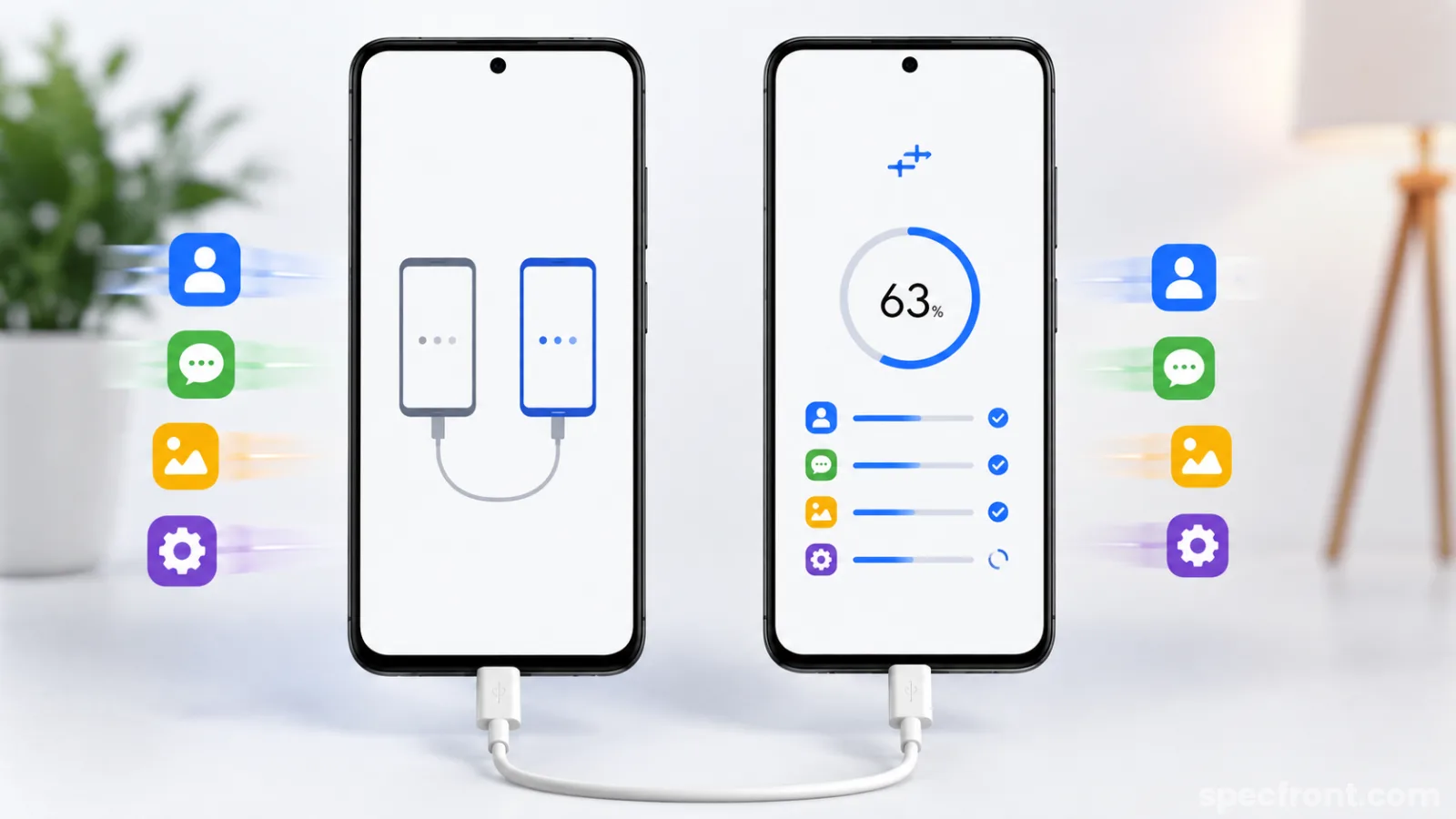
Method 1: The Direct Transfer (Google's Built-In Setup)
The absolute easiest and most comprehensive way to transfer your data is during the initial setup process of your new phone. According to official Google Android Support documentation, connecting your two devices directly is the fastest and most reliable method for moving large amounts of data.
How to do it:
Turn on your new Android phone and tap Start.
Connect to a stable Wi-Fi network when prompted.
Select Copy apps and data when the screen appears.
Unlock your old phone and keep it nearby.
Connect both phones using a USB-C to USB-C cable. As noted by Android's developer guidelines, a wired connection prevents data drops and significantly speeds up the transfer of large video and photo files.
If you do not have a compatible cable, select No cable? to proceed wirelessly over a secure local Wi-Fi connection.
Choose exactly what you want to transfer (Contacts, Apps, Photos, Device Settings) and tap Copy.
Note: Keep both phones plugged into power sources if your batteries are low, as this process can take anywhere from 10 minutes to an hour depending on the amount of data.
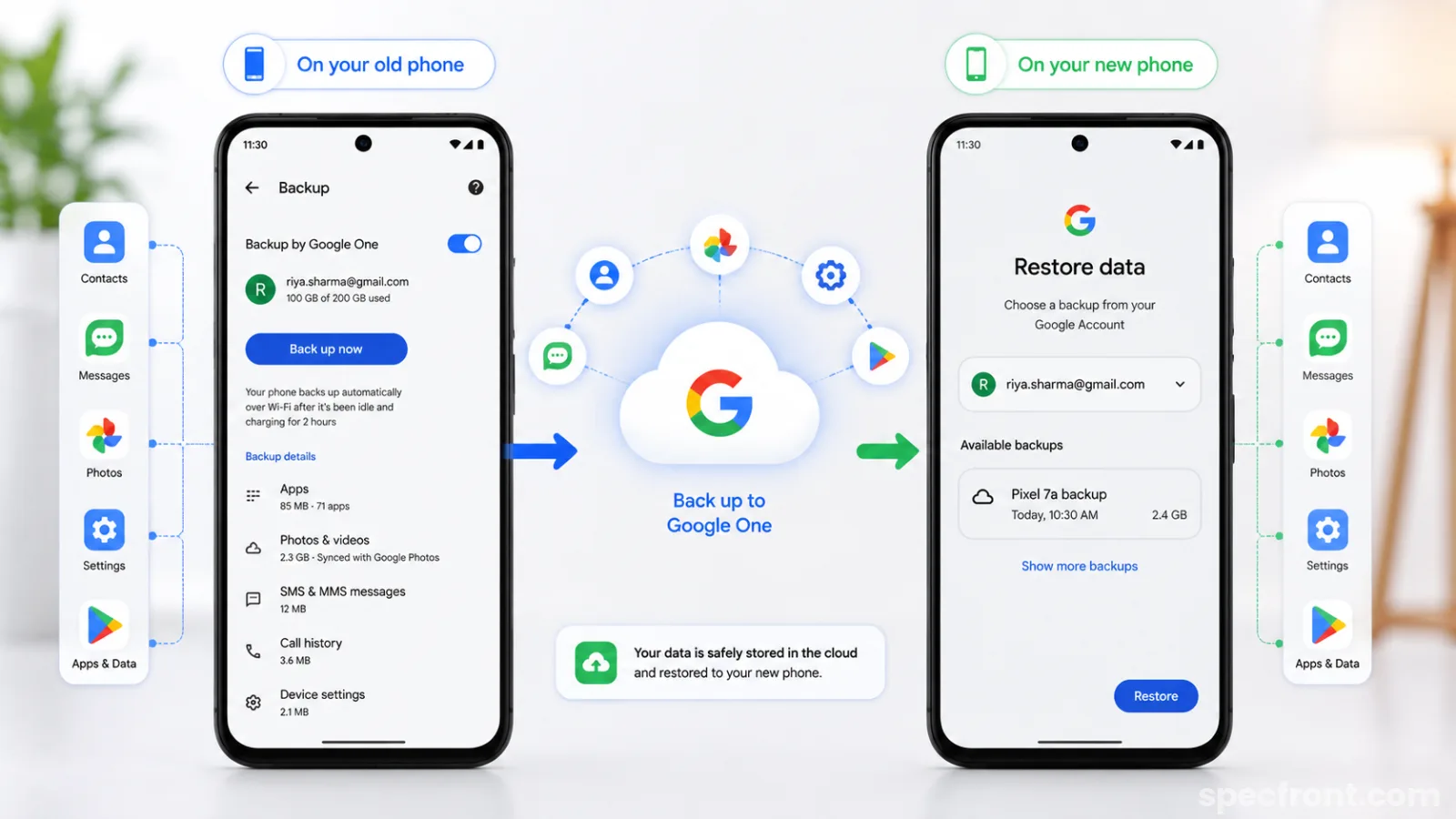
Method 2: Cloud Transfer via Google One Backup
If you no longer have access to your old phone, or if you prefer a wireless method without keeping both phones side-by-side, relying on Google's cloud backup is your best alternative. As detailed on the Google One Help Center, every Google account comes with 15GB of free storage that can be used to back up device data.
Steps on your Old Phone:
Open the Settings app.
Scroll down and tap Google, then select Backup.
Ensure Backup by Google One is toggled on.
Tap Back up now to force a fresh sync of your contacts, app data, SMS messages, and call history to the cloud.
Steps on your New Phone:
Power on the new device and sign in with the exact same Google Account used on your old phone.
When prompted to restore data during setup, select the most recent backup from the cloud.
Wait for the apps and settings to download automatically in the background.
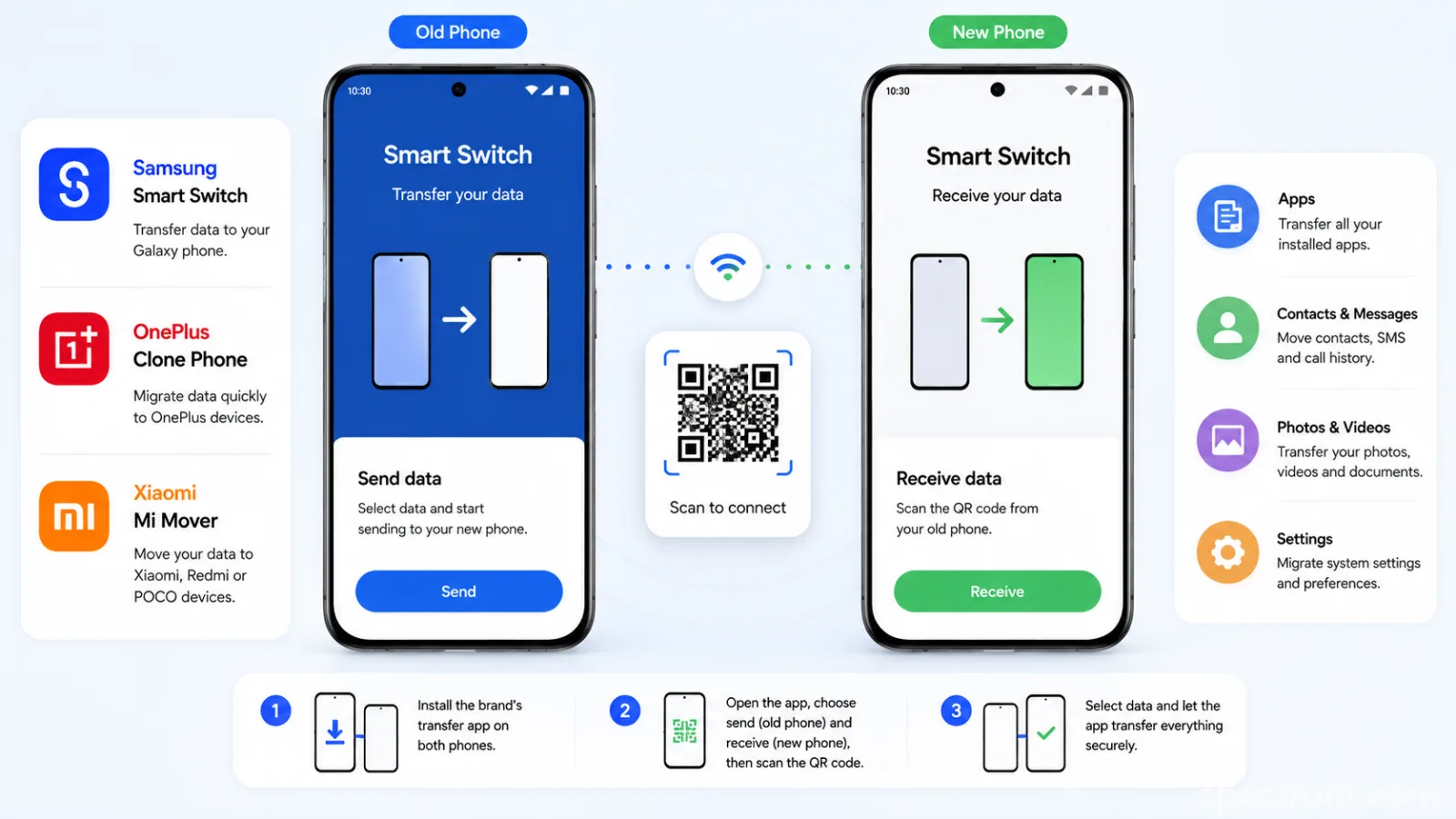
Method 3: Manufacturer-Specific Transfer Apps
Many major smartphone brands offer their own dedicated transfer applications. According to independent testing by various tech publications, these proprietary apps are highly optimized for moving data between devices of the same brand, often transferring hidden system settings that Google's default tool might miss.
Popular transfer applications include:
Samsung Smart Switch: The official recommendation by Samsung Support for moving data from any Android or iOS device to a Galaxy smartphone.
OnePlus Clone Phone: Designed to quickly migrate data to OnePlus devices.
Xiaomi Mi Mover: The default utility for upgrading to a Xiaomi, Redmi, or POCO handset.
These apps can usually be downloaded from the Google Play Store on your old phone. Simply open the app on both devices, scan the generated QR code, and let the software handle the rest.
 Crucial Steps: WhatsApp and Two-Factor Authentication (2FA)
Crucial Steps: WhatsApp and Two-Factor Authentication (2FA)
Even with full device transfers, a few sensitive applications require manual intervention for security reasons.
Transferring WhatsApp Chats: According to WhatsApp's official FAQ, chat histories do not automatically transfer via standard device backups. You must open WhatsApp on your old phone, navigate to Settings > Chats > Chat Backup, and initiate a fresh backup to Google Drive. Upon logging into WhatsApp on the new phone, you will be prompted to restore this specific database.
Moving 2FA Authenticator Apps: Losing access to your Two-Factor Authentication codes can lock you out of important accounts. If you use Google Authenticator, Google's security blog highlights a built-in transfer feature. Open the app on your old phone, tap the top menu, select Transfer accounts, and choose Export accounts. Use your new phone to scan the resulting QR code to instantly migrate your security tokens.
Final Checklist
Before you factory reset or trade in your old smartphone, always double-check your new device. Ensure your text messages are present, your photos are safely in the gallery, and your banking apps are authorized. Once you are absolutely certain the migration was successful, you can safely wipe your old device.